VALIDUS AERO
APPLICATION TUTORIAL · SYNTHETIC DEMO DATA

Learn the operating workflow.
Keep the evidence connected.

Eight task-based chapters for qualification control, training planning, simulator capacity, reporting, protected history, and role-based access.

START HERE

Know what the status colours mean.

Colour tells you where to look. The underlying completion, expiry, booking, and history tell you why.

ValidIn date
Booking windowPlan it
Expiry monthUrgent
BookedSession linked
Not startedRecord gap
01WORKFLOW
All roles4 min

Read readiness before taking action

Start with the operating picture, then move from an alert to the exact record behind it.

OBJECTIVE

Understand what is valid, approaching its planning window, booked, or already expired before changing any record.

PROCEDURE4 steps
  1. 01

    Confirm your account and data context

    Use your named sign-in. Check the operator shown in the application and confirm that you are working in the intended environment before reviewing or changing records.

  2. 02

    Read the three fleet indicators

    Total crew defines the population. Critical checks due soon need planning attention. Expired checks grounded require immediate operational control under your operator procedure.

  3. 03

    Use colour as a prompt—not as the evidence

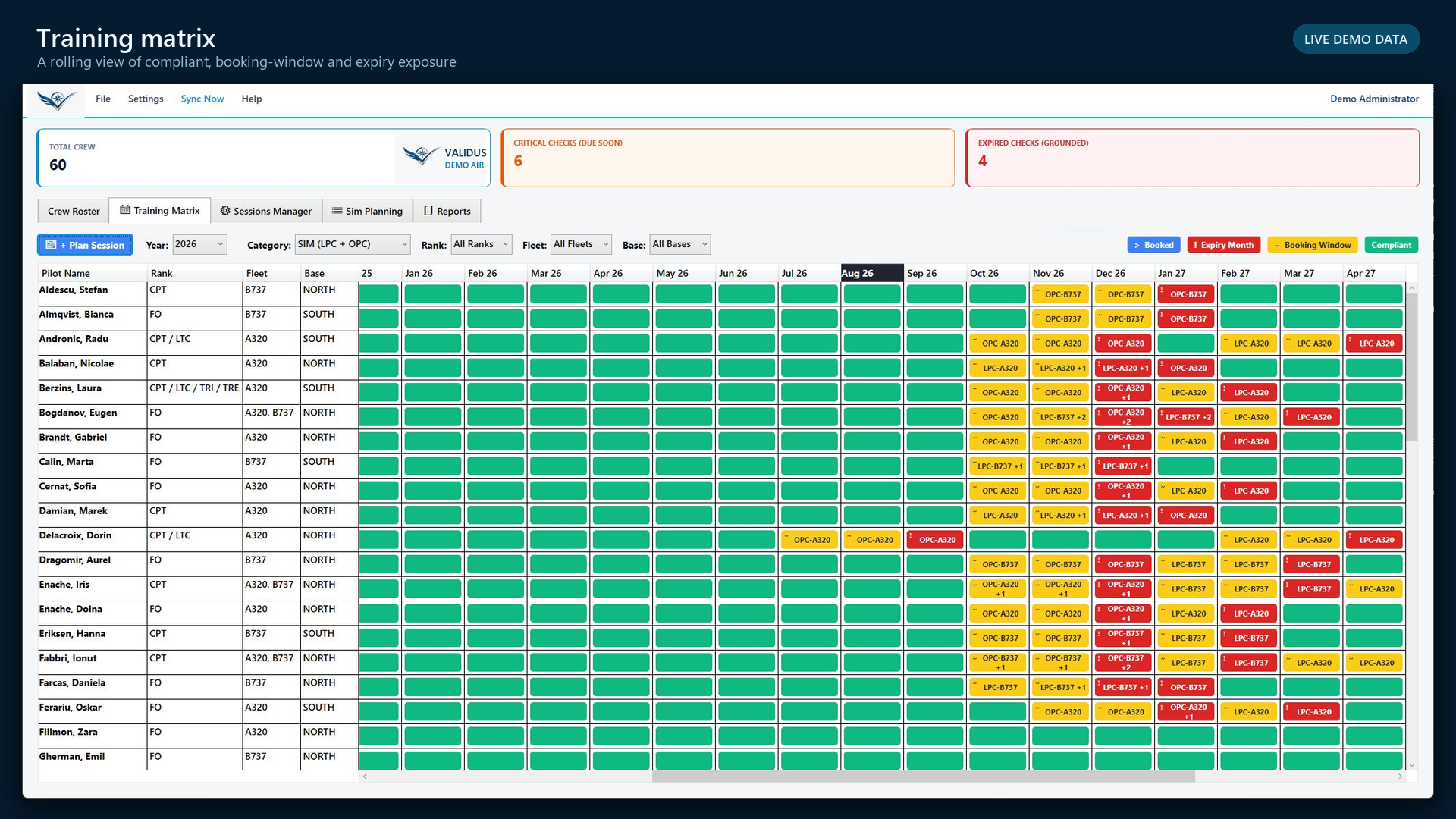
    Green is compliant, yellow is the booking window, red is the expiry month, and blue is booked. Open the crew or qualification record to confirm the check, aircraft type, dates, and source completion.

  4. 04

    Separate missing data from expiry

    Not started means no completion is recorded in Validus Aero. It is a record-completeness gap, not proof that the event never occurred.
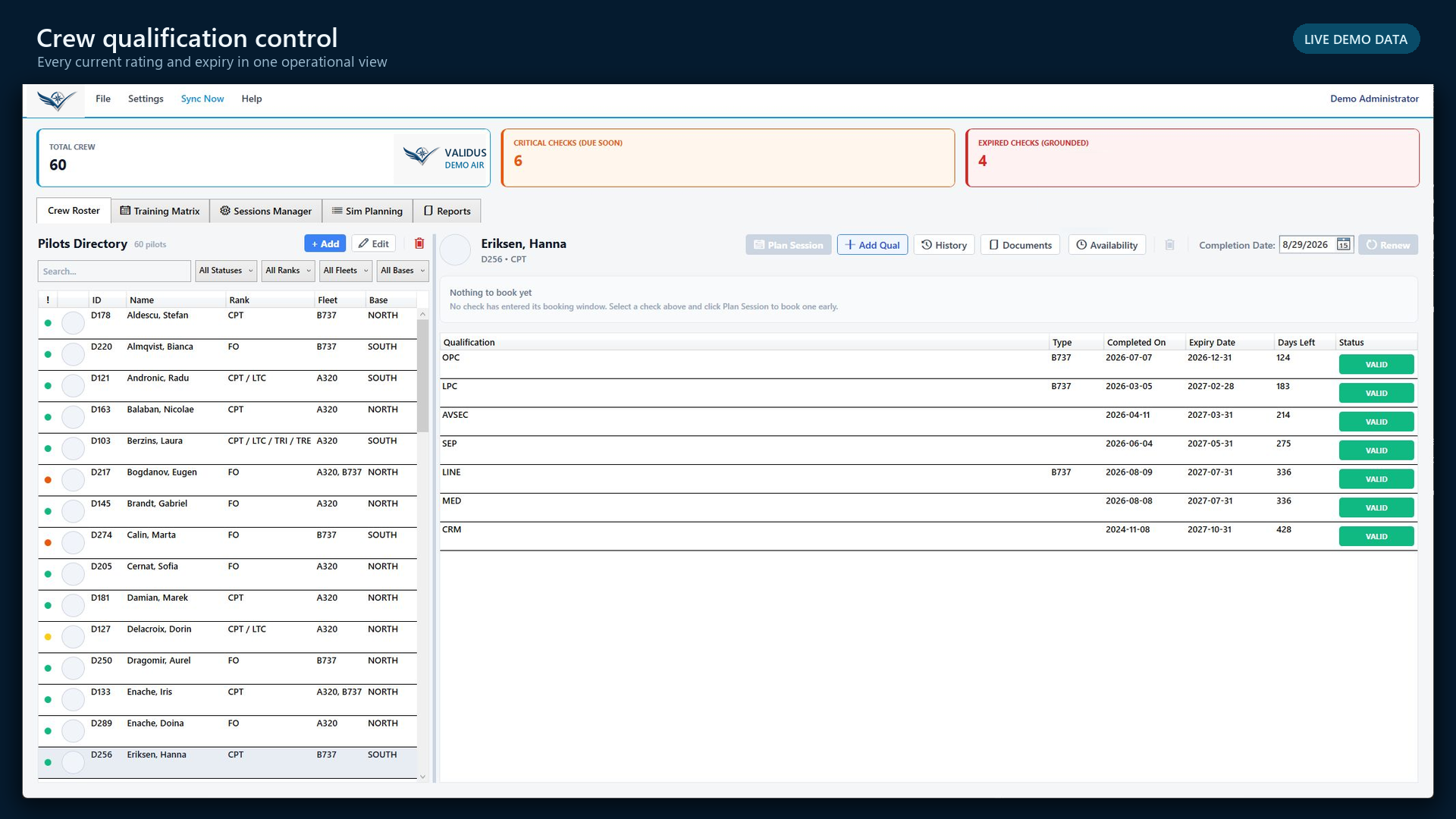
AUTHENTIC APPLICATION SCREENCrew roster · current record
Validus Aero crew roster and qualification record using synthetic demo data
Validus Demo Air · synthetic records · no reconstructed interface
AUTHENTIC APPLICATION SCREENTraining matrix · planning horizon
Validus Aero training matrix using synthetic demo data
Validus Demo Air · synthetic records · no reconstructed interface
CHECK YOUR RESULT

You can explain why a crew member is shown as valid, due, booked, expired, or incomplete—and identify the record that supports the status.

!
AVOID THIS

Do not treat the headline count or matrix colour as a release-to-service decision. Follow the operator’s approved control process and verify the underlying record.
02WORKFLOW
Planner · Records · Administrator5 min

Find and verify a crew record

Use filters to locate the person, then verify ratings, qualifications, availability, documents, and history.

OBJECTIVE

Confirm that the selected crew member, fleet context, and qualification dates are correct before planning or recording an event.

PROCEDURE4 steps
  1. 01

    Open Crew Roster

    Search by name or ID, or narrow the directory by status, rank, fleet, and base. Select the crew member from the filtered list.

  2. 02

    Confirm identity and operating context

    Check name, crew ID, rank, fleet or ratings, and base. Resolve a wrong selection before continuing.

  3. 03

    Review the qualification table

    Read the qualification, applicable aircraft type, completed date, expiry date, days left, and current status together.

  4. 04

    Open the supporting views when needed

    Use History for the completion trail, Documents for supporting files, and Availability for planning constraints. Use Add Qual only when the qualification genuinely belongs on the record.

AUTHENTIC APPLICATION SCREENCrew roster · individual qualification record
Selected synthetic crew member in the Validus Aero crew roster
Validus Demo Air · synthetic records · no reconstructed interface
CHECK YOUR RESULT

The person, qualification, aircraft type, completion, expiry, and planning context all agree before you act.

!
AVOID THIS

Do not overwrite a qualification merely to clear an alert. First establish whether the source event exists, whether the rule is correct, and whether a correction is required.

03WORKFLOW
Planner · Administrator7 min

Turn a due qualification into planned work

Move from the matrix or due list into a session without losing the reason for the booking.

OBJECTIVE

Create a training requirement from a real qualification need, with the correct crew, check, fleet, and timing.

PROCEDURE4 steps
  1. 01

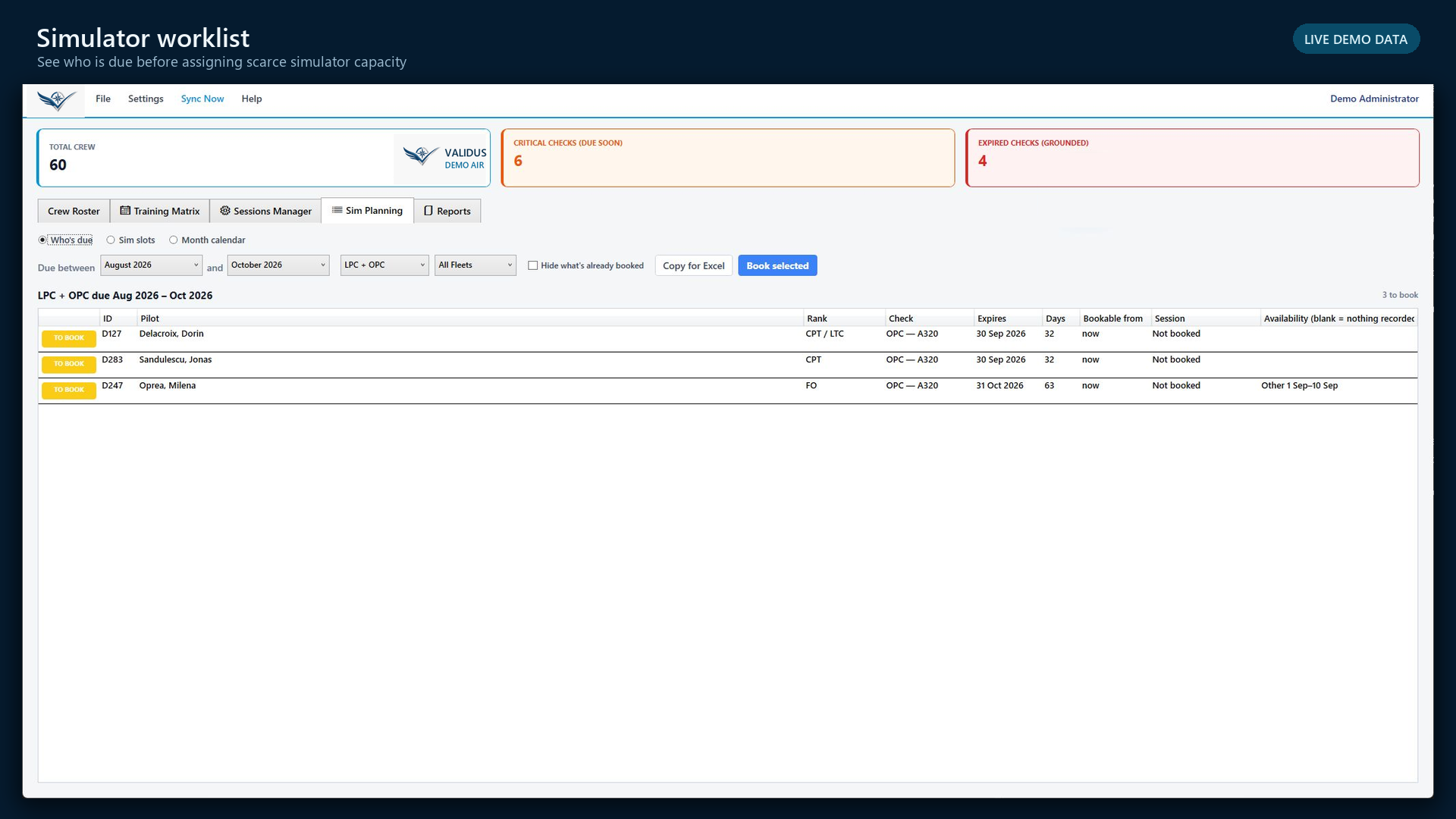
    Start from the matrix or Who’s due

    Choose the year and qualification category, then filter rank, fleet, and base. Use the booking-window and expiry states to set priority.

  2. 02

    Confirm the requirement

    Open the crew and check. Confirm the expiry date, aircraft type, whether the requirement is bookable now, and whether a session is already linked.

  3. 03

    Review availability before booking

    In Sim Planning, use the date range and check filter. Read any crew availability note and pairing constraint before selecting the row.

  4. 04

    Create the planned session

    Use Plan Session or Book selected. Carry the selected crew, check, and planning reason into the session, then add the assigned date, provider, device, crew pairing, and instructor as they become known.

AUTHENTIC APPLICATION SCREENTraining matrix · identify pressure
Training matrix showing qualification demand using synthetic demo data
Validus Demo Air · synthetic records · no reconstructed interface
AUTHENTIC APPLICATION SCREENWho’s due · create the worklist
Simulator planning worklist with synthetic crew and qualifications
Validus Demo Air · synthetic records · no reconstructed interface
CHECK YOUR RESULT

The planned item can be traced back to the crew member and qualification that created the demand.

!
AVOID THIS

Do not create a second booking when the matrix already shows the requirement as booked. Open the linked session and correct that plan instead.

04WORKFLOW
Planner · Administrator8 min

Assign simulator capacity and review the month

Match the requirement to real capacity, then check the calendar before publishing the plan.

OBJECTIVE

Place due crews into the correct provider, simulator, date, and time without creating a capacity or availability conflict.

PROCEDURE5 steps
  1. 01

    Filter the slot inventory

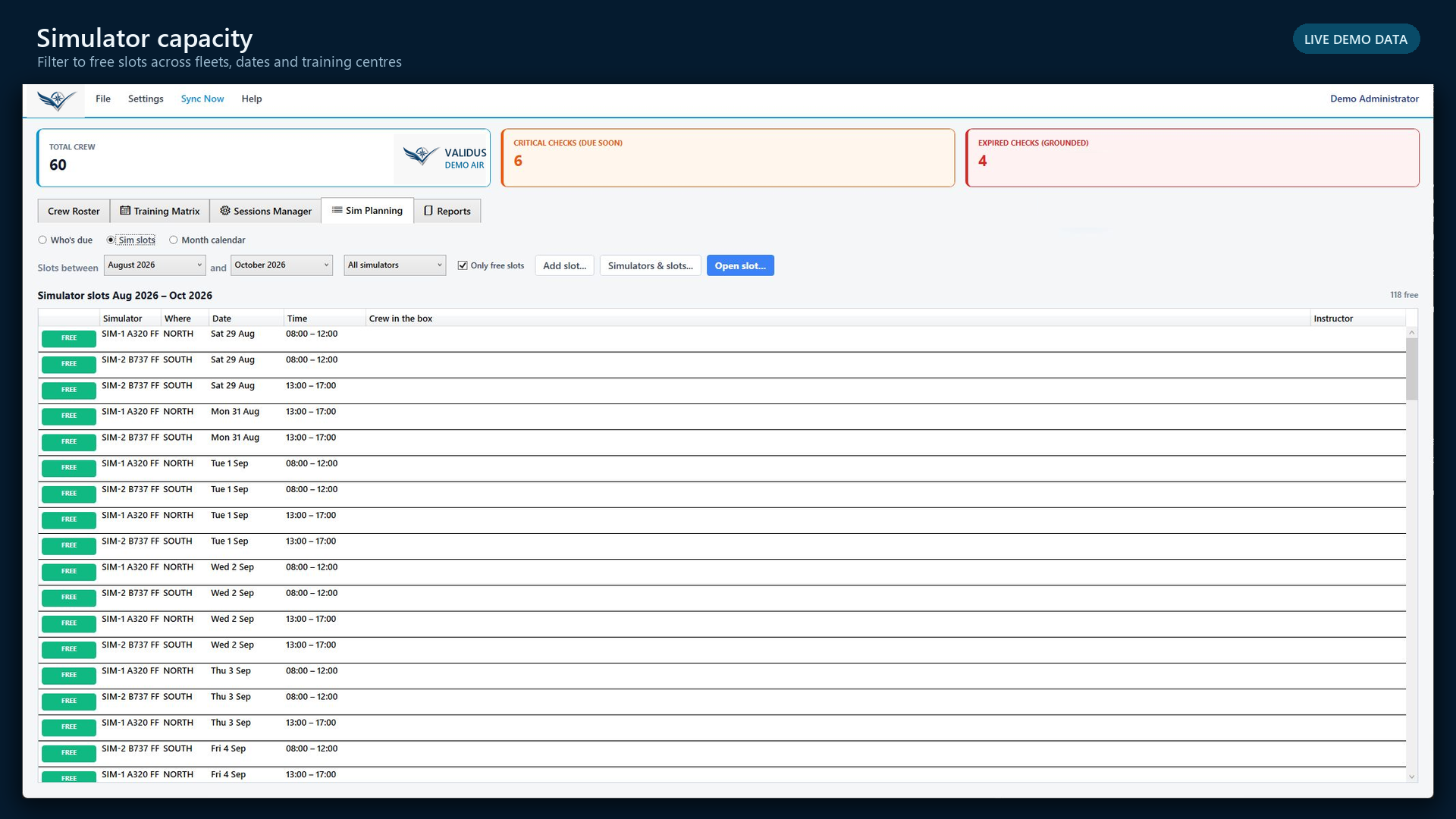
    Open Sim slots. Set the required date range and simulator or fleet. Use Only free slots when you are looking for capacity to assign.

  2. 02

    Verify the slot before opening it

    Check the simulator, training centre, date, time, crew already in the box, and instructor. A free label describes capacity—not crew suitability.

  3. 03

    Open or hold the slot deliberately

    Select the capacity and use Open slot. Complete the crew, qualification, pairing, instructor, and location details required by your process.

  4. 04

    Review the month calendar

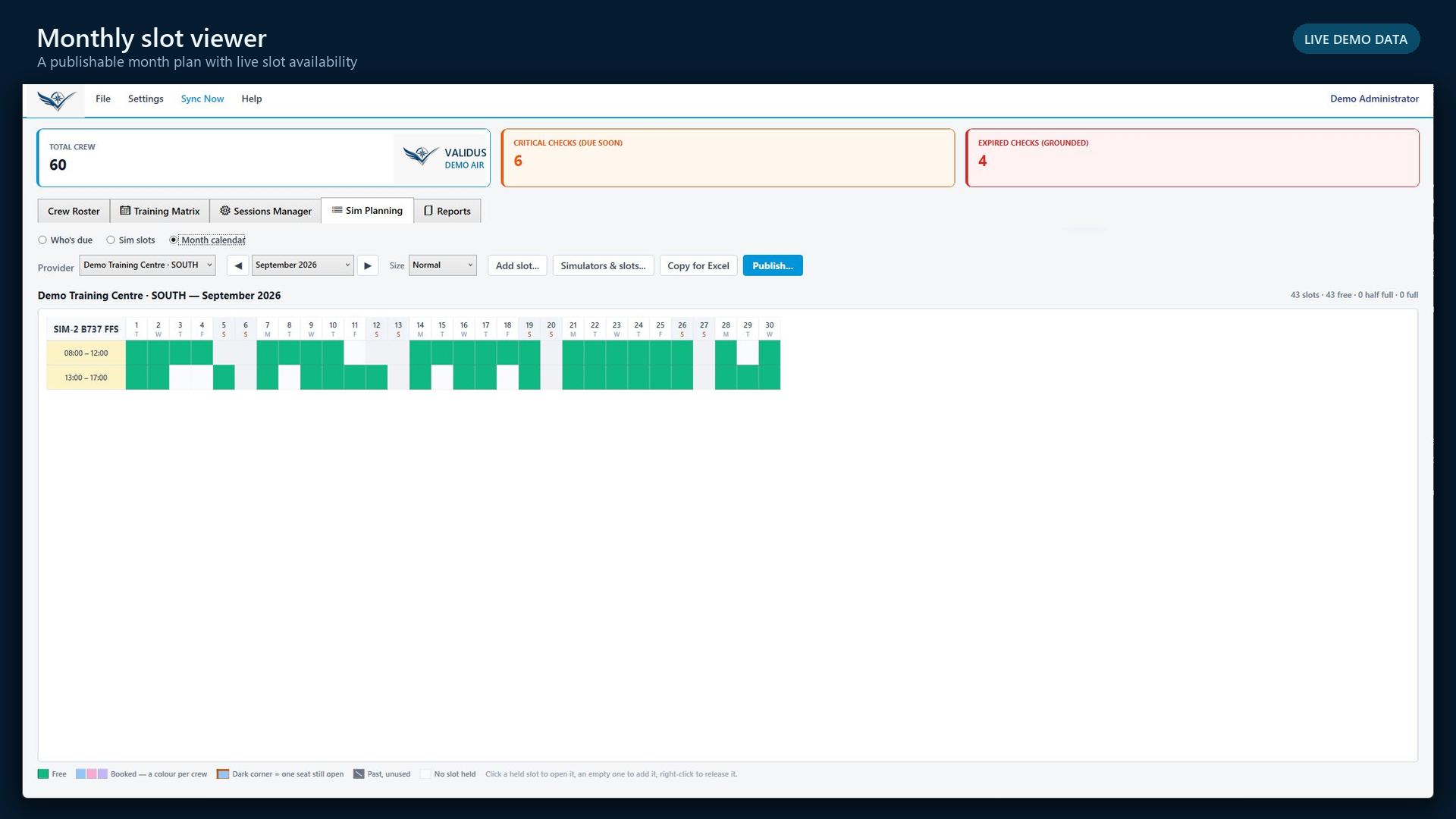
    Switch to Month calendar and select the provider, month, and display size. Read every device and time row, including held, half-full, full, free, and past states.

  5. 05

    Publish only after the plan is coherent

    Check crew and instructor summaries, unresolved half-full slots, overnight times, and provider totals. Use Publish only when the month is ready for its intended audience.

AUTHENTIC APPLICATION SCREENSim slots · available capacity
Validus Aero simulator capacity list using synthetic demo data
Validus Demo Air · synthetic records · no reconstructed interface
AUTHENTIC APPLICATION SCREENMonth calendar · publishable plan
Validus Aero monthly simulator slot viewer using synthetic demo data
Validus Demo Air · synthetic records · no reconstructed interface
CHECK YOUR RESULT

The requirement, crew, instructor, provider, simulator, date, and time form one consistent booking.

!
AVOID THIS

A blank availability field means no availability is recorded; it does not mean the crew member is available. Confirm according to the operator’s planning process.

05WORKFLOW
Planner · Records · Administrator6 min

Manage and complete a training session

Keep planned work current and record completion only when the supporting event is confirmed.

OBJECTIVE

Move a session from planned to completed while preserving the correct crew, event, date, and evidence.

PROCEDURE4 steps
  1. 01

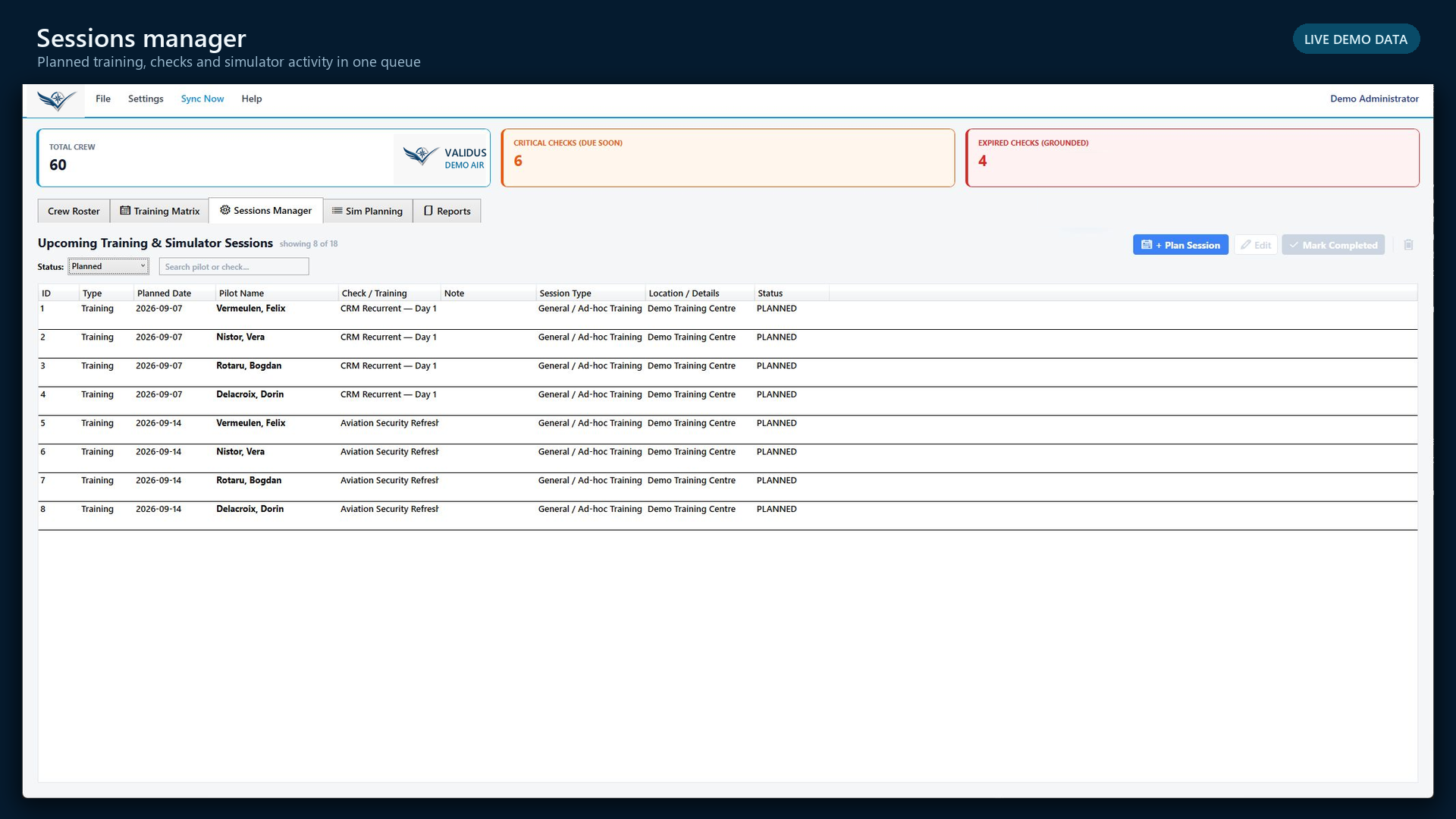
    Open Sessions Manager

    Filter by session status and search by crew member or check. Select the intended row and verify planned date, session type, location, and participants.

  2. 02

    Update the plan when circumstances change

    Use Edit to correct the planned session rather than creating a replacement. Keep the reason for the training and its linked requirement intact.

  3. 03

    Confirm the completed event

    Before Mark Completed, verify the actual completion date, event or check, aircraft or simulator detail, instructor or examiner context, and supporting record required by your operator.

  4. 04

    Check the resulting qualification

    After completion, return to the crew record or matrix. Confirm the new completed date, calculated expiry, status, and history entry.

AUTHENTIC APPLICATION SCREENSessions Manager · planned and completed work
Validus Aero sessions manager using synthetic demo data
Validus Demo Air · synthetic records · no reconstructed interface
CHECK YOUR RESULT

The completed session updates the right qualification and leaves a dated history entry behind the new live status.

!
AVOID THIS

Do not mark a session completed to make the dashboard look current. Completion is an operational record and should match the supporting evidence.

06WORKFLOW
Planner · Records · Administrator6 min

Generate an individual record or audit pack

Choose the reporting scope, review what the report will contain, and generate evidence from current records.

OBJECTIVE

Produce a report whose population, check scope, status logic, completeness, and generation time are clear to the reviewer.

PROCEDURE4 steps
  1. 01

    Open Reports and select the output

    Use the audit pack for a controlled population view. Use the individual record for one crew member’s current status and full recorded history.

  2. 02

    Define the scope deliberately

    Select the check group and included qualifications. Include individual records or former crew only when the requested review requires them.

  3. 03

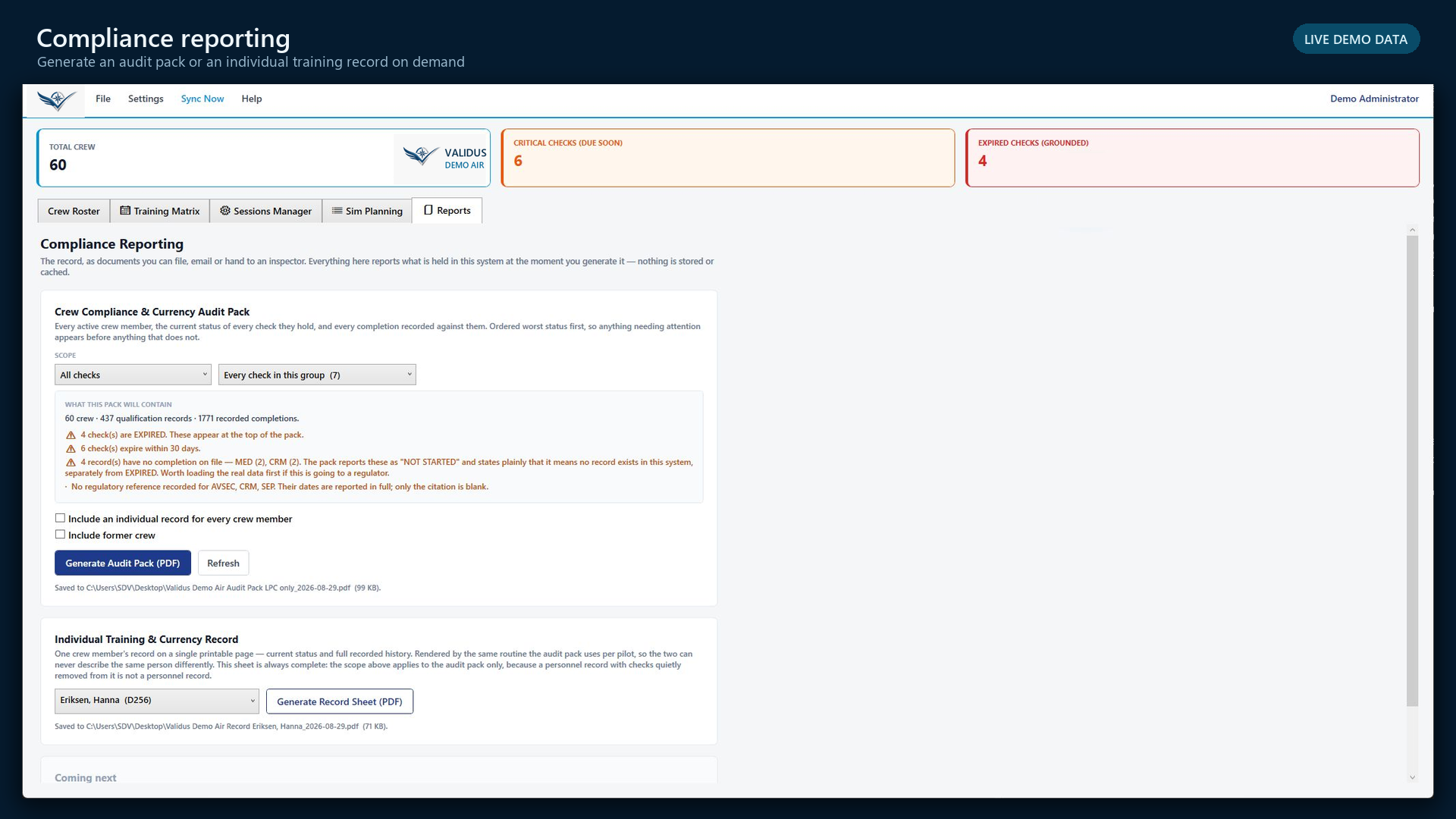
    Read the pre-generation summary

    Review the crew count, qualification records, completions, expired and critical checks, missing completions, and missing regulatory references before generating.

  4. 04

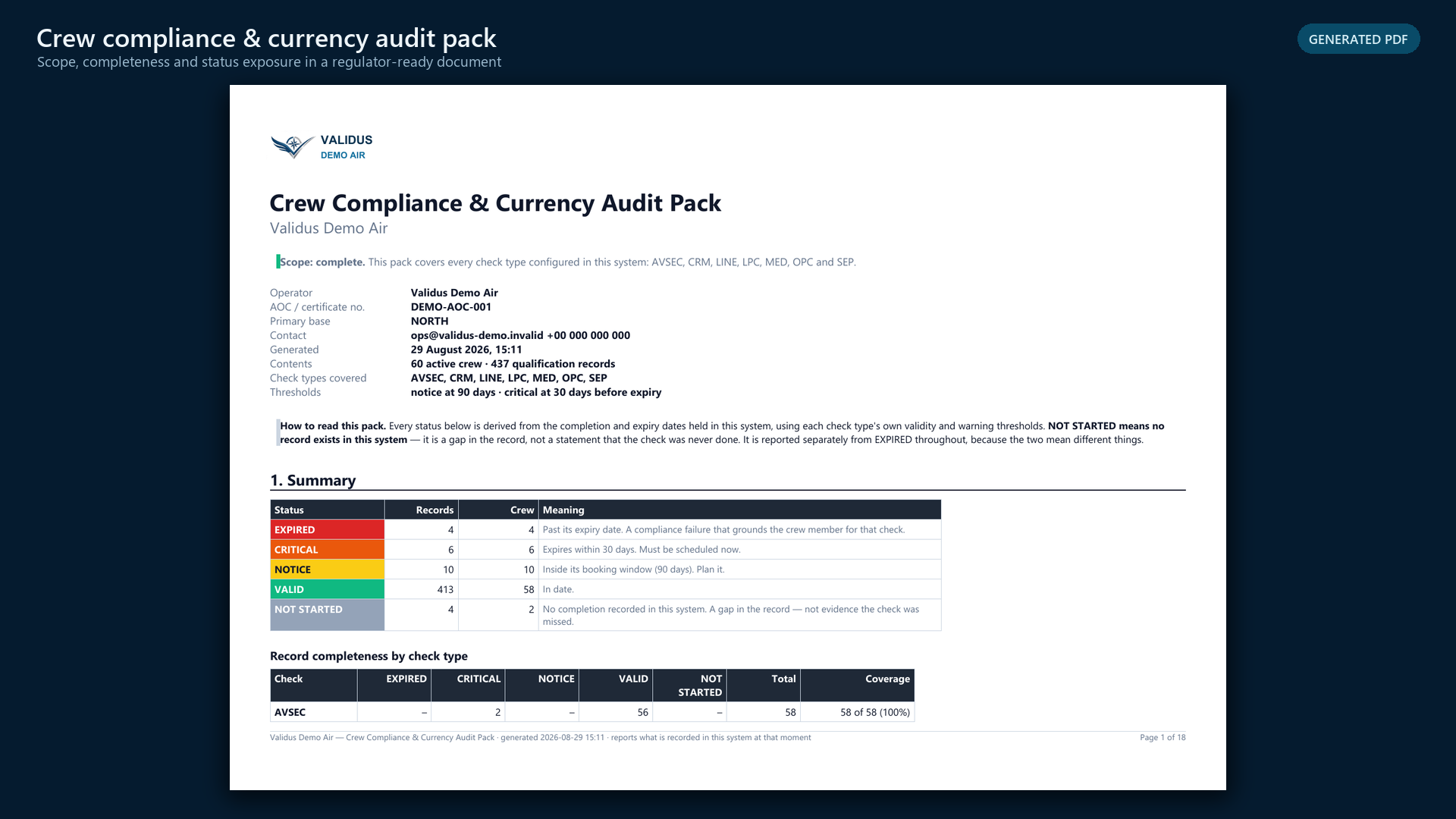
    Generate and review the PDF

    Confirm the operator, generation time, check types, thresholds, status definitions, summary totals, and action register. Store or transmit the report according to your organization’s data policy.

AUTHENTIC APPLICATION SCREENReports · define scope
Validus Aero compliance reporting module using synthetic demo data
Validus Demo Air · synthetic records · no reconstructed interface
AUTHENTIC APPLICATION SCREENAudit pack · review the evidence
Generated Validus Aero audit pack using synthetic demo data
Validus Demo Air · synthetic records · no reconstructed interface
CHECK YOUR RESULT

A reviewer can see what the report covers, when it was generated, how statuses were derived, and which items require action.

!
AVOID THIS

A generated report reflects what is recorded at that moment. Resolve known data-quality gaps or explain them; do not present absence of a record as evidence of absence.

07WORKFLOW
Records · Administrator5 min

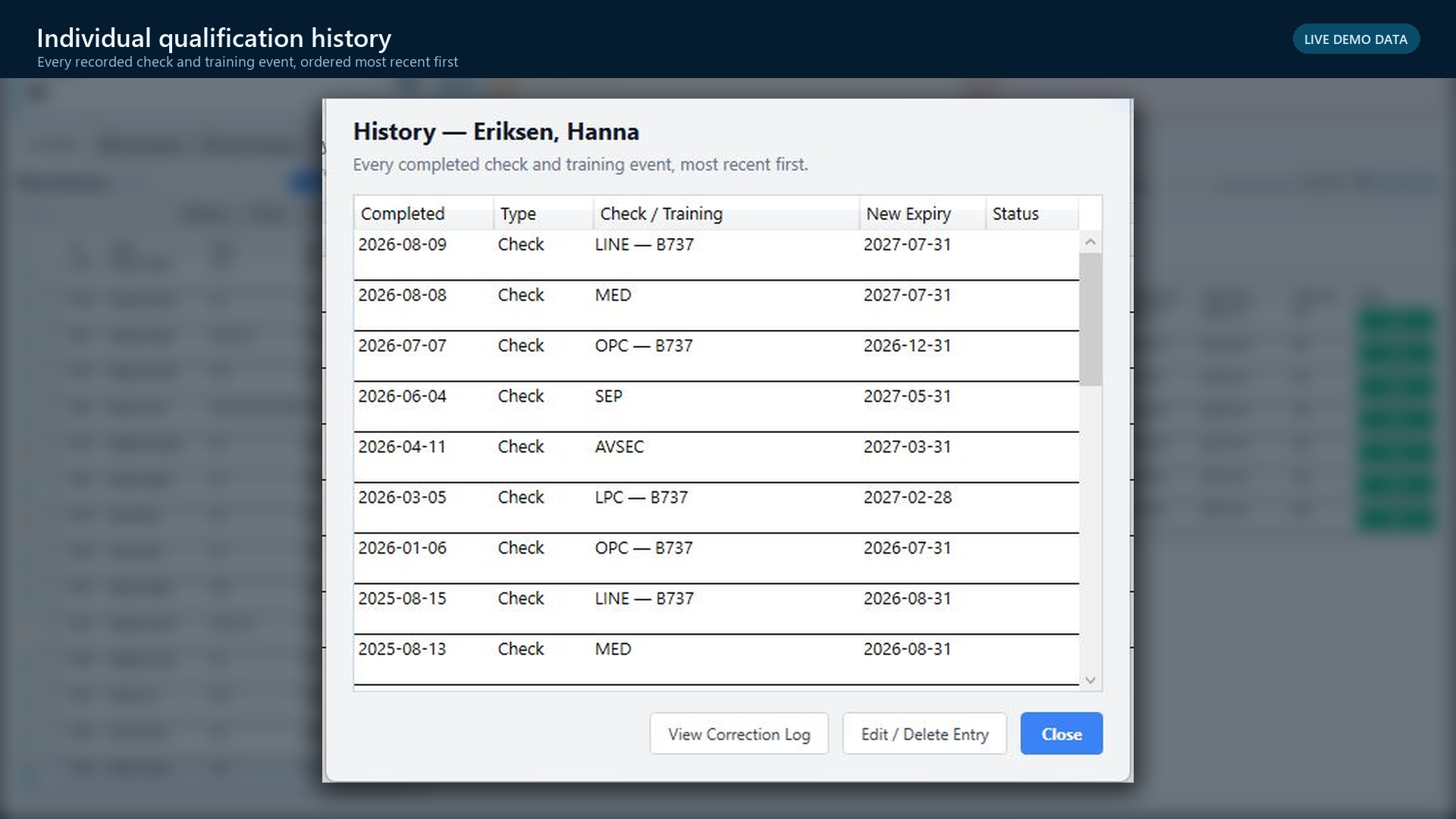
Review history and make a controlled correction

Trace the live value to its completion, inspect prior corrections, and preserve the reason for any change.

OBJECTIVE

Correct an ordinary record error without erasing the history needed to explain what changed and why.

PROCEDURE4 steps
  1. 01

    Open the crew member’s History

    Confirm that the dialog belongs to the intended person. Locate the event by completed date, type, check or training, and resulting expiry.

  2. 02

    Inspect the correction log first

    Use View Correction Log to determine whether the entry was already changed and whether the current value is supported.

  3. 03

    Correct only the erroneous entry

    Use Edit / Delete Entry according to your permission and operator procedure. Enter a specific reason that identifies the source and nature of the correction.

  4. 04

    Verify both history and live status

    Reopen the qualification and history. Confirm that the corrected value, resulting expiry, responsible user, reason, and prior state are all represented correctly.

AUTHENTIC APPLICATION SCREENHistory · completed events and corrections
Validus Aero individual qualification history using synthetic demo data
Validus Demo Air · synthetic records · no reconstructed interface
CHECK YOUR RESULT

The current value is correct and the correction remains attributable, dated, and explainable.

!
AVOID THIS

Do not use deletion as routine cleanup. Where the original value influenced operational decisions, follow the operator’s escalation and record-retention requirements.

08WORKFLOW
Administrator5 min

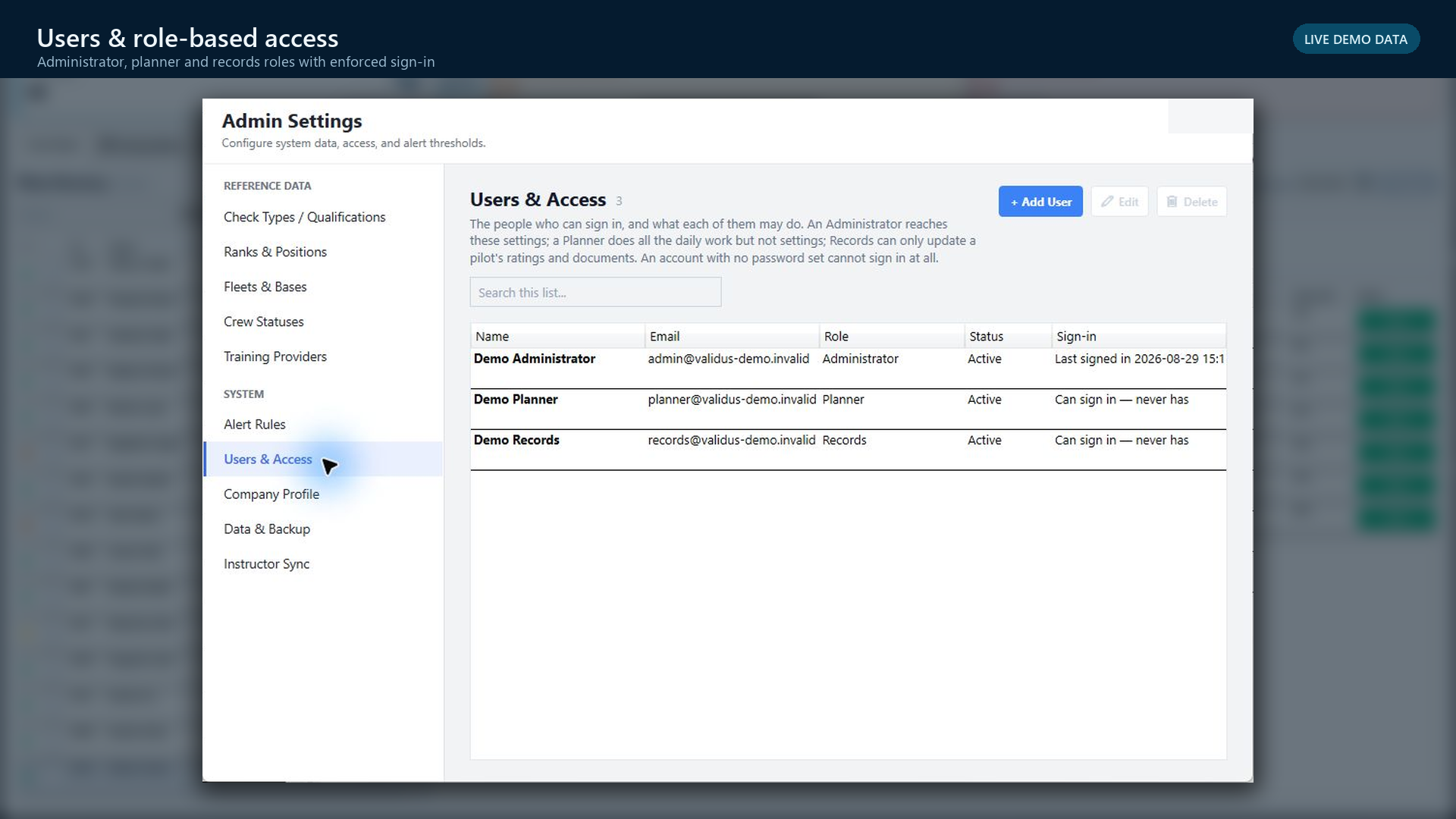
Manage named users and roles

Give each person the access required by their responsibility—without sharing a broad account.

OBJECTIVE

Maintain authenticated, accountable access for administrators, planners, and records personnel.

PROCEDURE4 steps
  1. 01

    Open Settings → Users & Access

    Review each user’s name, email, role, account status, and sign-in information. Investigate unexpected or unused access under your security process.

  2. 02

    Use a named account

    Add one user identity per person. Do not share administrator or operational credentials between team members.

  3. 03

    Assign the least-permissive role

    Administrator reaches system settings. Planner performs daily planning work but not settings. Records updates crew ratings and documents. Choose the role that matches the actual job.

  4. 04

    Review access when responsibilities change

    Update or remove access promptly under your organization’s joiner, mover, and leaver process. Confirm the account state after the change.

AUTHENTIC APPLICATION SCREENUsers & Access · named accounts
Validus Aero users and role-based access screen using synthetic demo identities
Validus Demo Air · synthetic records · no reconstructed interface
CHECK YOUR RESULT

Every active user has a named identity and a role that matches their operational responsibility.

!
AVOID THIS

Do not assign Administrator merely to overcome a workflow problem. Resolve the required permission or process explicitly so accountability remains meaningful.

OPERATIONAL HABIT

Detect. Plan. Record. Prove.

Use the matrix to detect exposure, the planning views to turn it into work, the session record to preserve completion, and reports to prove the current state.

Discuss your operating workflow